
How to Make AI Cat Drama Videos for TikTok
The full workflow behind AI cat drama videos on TikTok: pick a plot, cast your cats, break it into 5-second shots, add voices and subtitles, then post.
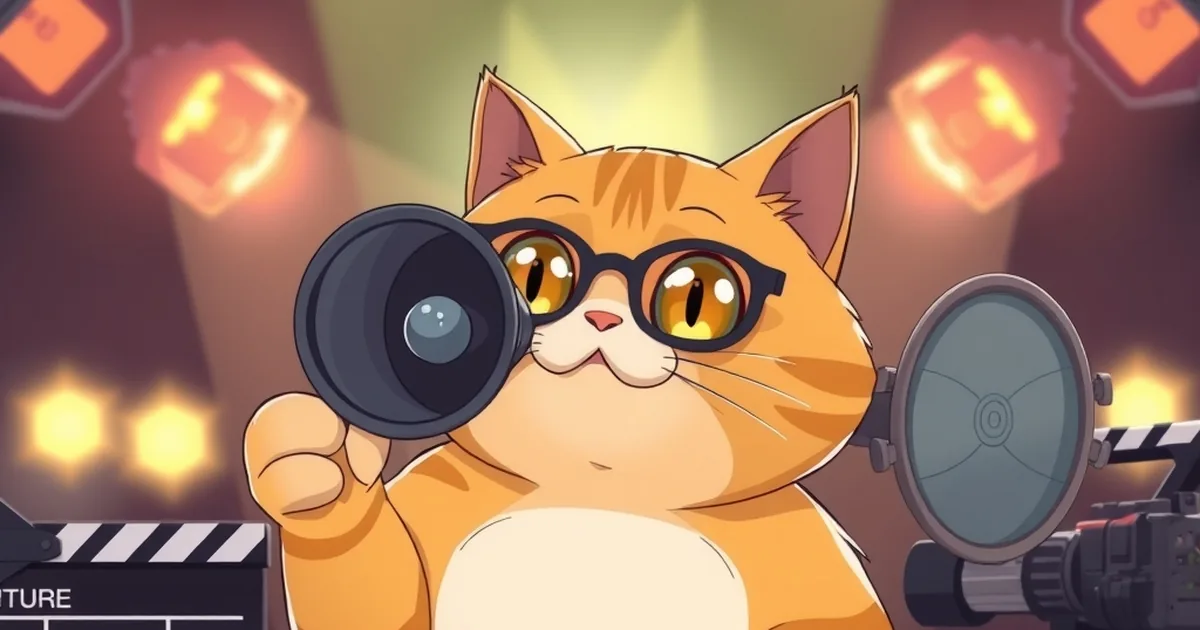
To make an AI cat drama video for TikTok, you pick a short plot with one clear twist, cast two or three cat characters, generate the story as a run of 5-second vertical shots with voices and subtitles, and post it as Part 1 with TikTok's AI-generated label turned on. In PawDrama that whole chain sits in one composer: choose a plot template and your cats, press generate and download a 9:16 MP4; plans start at the price on our pricing page.
This guide walks through every step in order, with the numbers that matter (shot length, cast size, credits), and ends with how to do the same thing by hand if you prefer to stitch tools together yourself.
What an AI cat drama video is
The format you keep seeing on TikTok is a vertical soap opera starring cats who walk upright, wear clothes and talk. The plots are human melodrama turned up to eleven: a husband caught cheating, a poor cat thrown out on a snowy night, a bullied kitten who comes back as the boss. Episodes usually run 30 to 90 seconds, open on a moment of conflict and stop on a question, so the viewer has a reason to look for Part 2.
Three things make the format work, and they shape every step below:
- Characters you can tell apart instantly. An orange tabby, a white long-hair and a black cat read as three different people even on a small screen.
- One emotional turn per episode. Betrayal, humiliation, reveal, reunion. More than one turn in 30 seconds feels rushed.
- A hook at the end. The last shot sets up the next episode instead of wrapping everything up.
Step 1: Pick a plot with one clear twist
Start from a plot people already recognize. You do not need an original premise; you need a clean version of a familiar one. Here are six that fit a single episode well, with the length and music mood they suit:
| Plot | What happens | Length | Music mood |
|---|---|---|---|
| Kicked out in the snow | A kind, poor cat is thrown out into the cold; a stranger starts the comeback | 60 s | Sad |
| Cheating husband cat | A wife cat finds proof, confronts him and walks away | 60 s | Suspense |
| Billionaire cat returns | The cat everyone mocked comes back rich and reveals himself in public | 60 s | Epic |
| Instant karma | A mean cat does something cruel and the payback lands seconds later | 30 s | Funny |
| Loyal dog waits | A dog waits at the same spot every day until the owner comes home | 60 s | Warm |
| Fruit love triangle | A strawberry torn between a banana and a newcomer in the fridge | 30 s | Funny |
All six exist as plot templates in PawDrama, so the AI writes the episode script from the plot and you edit it. If you already have a story, paste it instead.
Step 2: Cast two or three characters
Pick a cast whose silhouettes and colors differ. Two orange cats in the same scene will confuse viewers; an orange tabby husband, a calico wife and a white rival will not. Keep the main cast at two or three. PawDrama allows up to four actors per episode and up to three in one shot, because every actor in a shot is passed to the video model as a reference image, and more references make each face less stable.
You can use the 14 preset actors (five cats, three dogs and six friends such as a strawberry, a pair of round bears and a doodle-line beagle puppy) or turn your own pet into an actor from one to three photos. That costs 6 credits once, and the actor is saved for every later episode.
Step 3: Choose a style, length and resolution
There are three styles: 3D animated, anime and claymation. 3D is the closest to what most TikTok cat dramas look like; anime suits fantasy and kingdom plots; claymation gives comedy a handmade feel.
For a first post, choose 30 or 60 seconds. A 30-second episode is six shots, enough for setup, turn and hook. A 60-second episode is twelve shots and lets the conflict breathe. Generate the version you post at 720p; use 480p for test runs, because it costs half as many credits (1 per second instead of 2).
Step 4: Get the script into 5-second shots
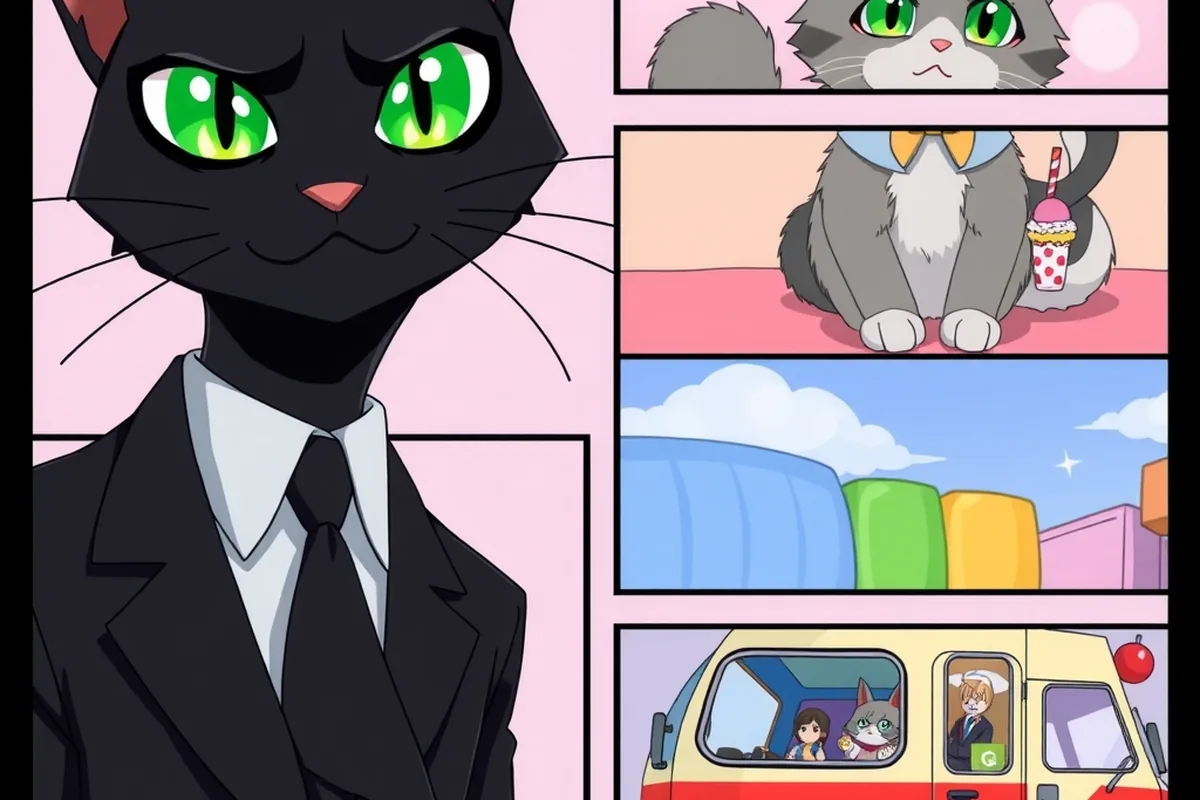
Every episode is built from 5-second shots, so think of your script as a list of shots, not a page of prose. Each shot should hold one action and at most one or two short spoken lines. Here is how a 30-second instant karma episode breaks down:
- A black cat in a suit cuts in front of a kitten at the ice cream truck. Kitten: "Hey, I was here first."
- The black cat laughs and knocks the kitten's cone onto the pavement.
- Close-up of the kitten's eyes filling with tears.
- The black cat struts away and steps right onto a skateboard left on the sidewalk.
- He rolls downhill, flailing, into a fountain. Narrator: "Some lessons arrive fast."
- The ice cream seller hands the kitten a double cone. The black cat glares from the water.
The script generator writes in this shape by default. If you paste your own script, it is split into shots for you, and you can fix any shot before you spend credits on video.
Step 5: Generate, then check every shot
When you press generate, each shot is rendered with your actors' character sheets as reference images, voices are generated for each line, and the episode is put together with subtitles and music. Before you download, scrub through and look for three problems: a face or fur pattern that drifted, a character in the wrong shot, and an action the model misread.
Fix only the shot that broke. Regenerating a 5-second shot costs that shot again (5 credits at 480p, 10 at 720p), which is far cheaper than redoing the whole episode. Failed generations are refunded automatically.
Step 6: Voices, subtitles and music
Each actor has one fixed voice, so the husband sounds like the husband in every episode, and a narrator voice is available for lines like "Three years later...". Subtitles are burned into the video, and an .srt file is available if you would rather add captions in TikTok's editor. Music comes from a built-in library of royalty-free tracks sorted by mood. The guide on making your cat talk goes deeper on writing lines that fit a 5-second shot.
Step 7: Post it on TikTok
Download the MP4. When you post:
- Put the part number in the caption and on screen in the first shot: "Part 1".
- Turn on TikTok's AI-generated content label. Every major platform has its own rule for AI video; follow it.
- Use plain descriptive hashtags (#catdrama, #aicat, #catstory) rather than borrowing names of other creators' series.
- Add the episode to a playlist so Part 2 is one tap away.
- Post Part 2 with the same cast and style. In PawDrama, "Make Part 2" carries over the cast, the style and a summary of the previous episode.

Doing it by hand with separate tools
You can build the same video without a dedicated app. The workflow is: write the script, generate one reference image per character with an image model, generate each 5-second shot with a video model that accepts reference images, create the voice lines with a text-to-speech tool, then cut everything together in a video editor and add subtitles and licensed music. It works, but expect to manage file names for dozens of clips, re-upload the same reference images for every shot and line up voice timing yourself. The cost guide breaks down what the raw model calls cost.
Mistakes that sink a first episode
- Too many characters. Five cats in one shot rarely hold their looks. Keep it to three.
- Long speeches. A 5-second shot fits about ten spoken words. Split anything longer.
- No hook. If the last shot resolves everything, nobody looks for Part 2.
- Human characters. Real people, human faces and lookalikes of real people are not supported and will be refused.
- Borrowed characters. Famous cartoon cats and brand mascots are someone else's property; they are refused here and can get a video taken down.